
Choosing a theme
Everything in Vela's window is drawn from a theme: the title bar, sidebar, tabs, conversation, message field, member list, link previews, badges and even the colors of nicknames. Vela comes with 21 built-in themes, and you can import, edit or write your own.
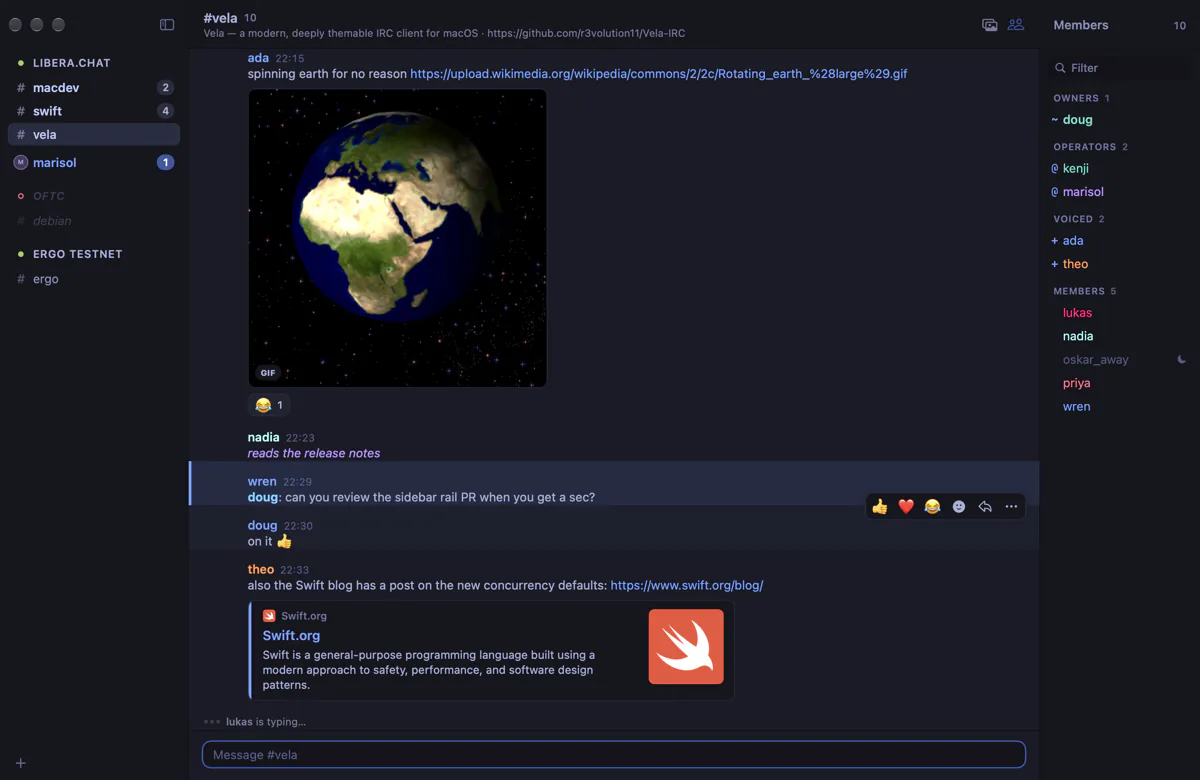
Light and dark
Out of the box, Vela follows your Mac: Palenight in Dark Mode and Lighter in Light Mode, switching automatically when macOS does. You can pick a different theme for each mode, or turn matching off and use one theme all the time.
The Match System Appearance switch is in the Theme menu and in Settings → Appearance → System appearance, along with the Dark Mode theme and Light Mode theme pickers.
Select Theme: the quickest way
Press ⌃⌘T (or choose Theme → Select Theme…) and move through the list with the arrow keys. The whole app takes on each theme as you go, so you can judge it on your own conversations. Press Return to keep it, or Esc to go back.
With Match System Appearance on, the theme you pick becomes the theme for the mode your Mac is in right now, and the other mode keeps its own. With it off, the theme you pick is used all the time.
The theme gallery
Settings → Appearance shows every theme as a small preview of Vela's window. Use All, Dark and Light to filter.
- Click a theme to use it. It follows the same rule as Select Theme: with Match System Appearance on, it becomes the theme for the current mode.
- Right-click a theme for more: Use in Dark Mode or Use in Light Mode (which keeps matching on), Customize in Theme Editor…, and, for your own themes, Show in Finder and Delete Theme….
Your own themes
Themes you import, save from the theme editor or write yourself live in the Themes folder. Open it with Theme → Reveal Themes Folder. Drop a theme file in, and it appears in the list right away; edit one in your text editor, and Vela reloads it the moment you save.
If a theme file has a mistake, Vela keeps showing the last version that worked and explains the problem in Settings → Appearance.
A theme of your own with the same file name as a built-in one (for example nord.json) replaces the built-in in the list.
Adjusting a theme without editing it
To change just a color or two, add appearance.colorCustomizations to settings.json. Overrides can apply to every theme or only to one:
"appearance.colorCustomizations": {
  "chat.timestamp": "#7A7A7A",
  "[Palenight]": { "accent": "#FFCB6B" }
}
Translucency
Most themes are opaque, so every color is exactly as designed. A theme can instead ask macOS to draw the sidebar, or the whole window, with its translucent Liquid Glass materials by setting "vibrancy" to "sidebar" or "window". Settings → Appearance → Translucency shows what the current theme uses.
What themes don't change
- Menus, context menus, alerts and file pickers are drawn by macOS. They follow the theme's light or dark type, not its colors.
- Fonts and sizes aren't part of themes; set them in Settings → Messages.