
The window
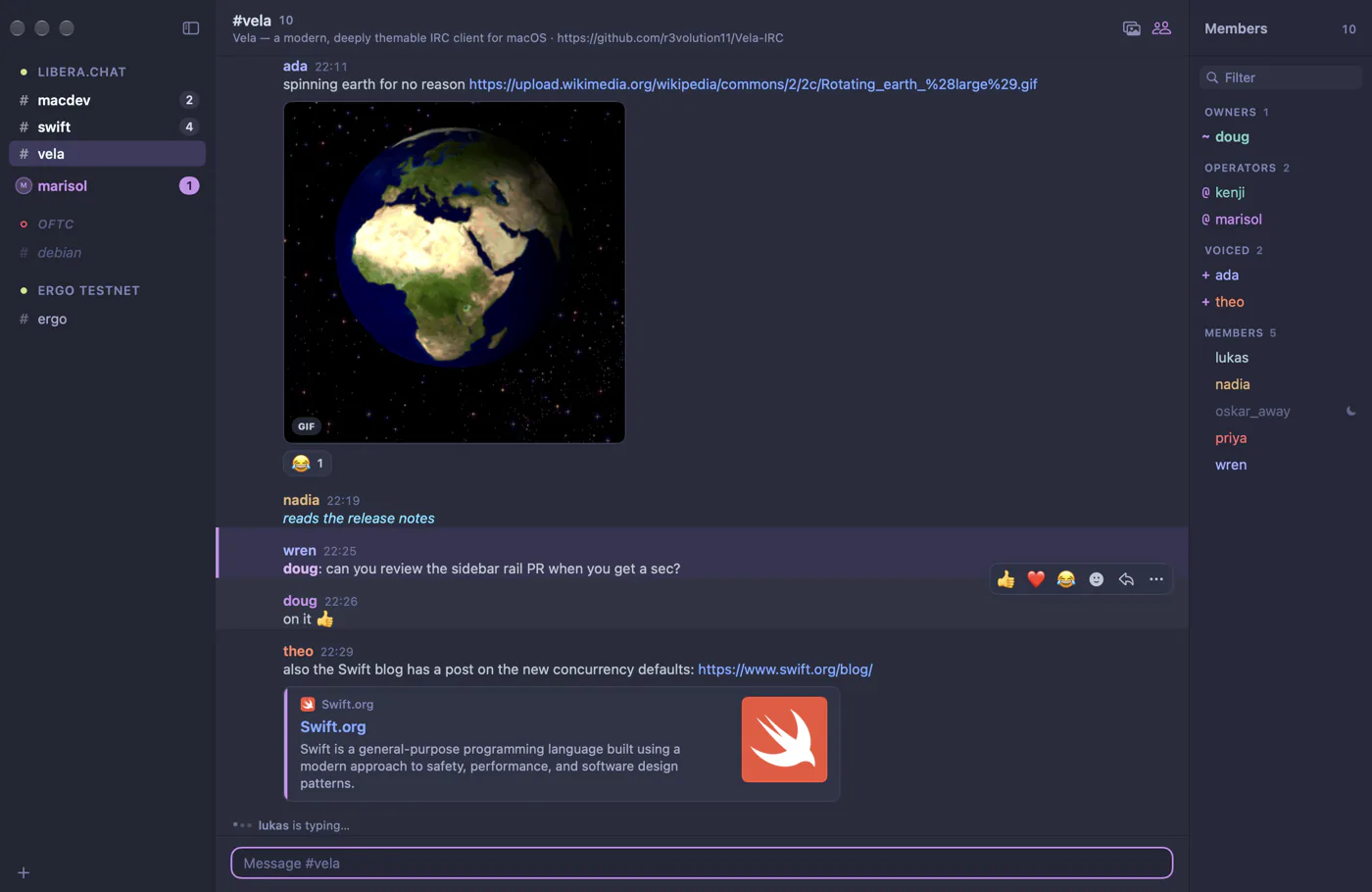
Vela's window has up to three panes: navigation on the left (or tabs along the top), the conversation in the middle and the member list on the right. Every part of it, down to the title bar, is drawn with your theme.
Sidebar or tabs
Choose how you move between networks and channels in Settings → Layout, or with View → Navigation:
- Sidebar (the default) suits many networks and channels.
- Tabs gives you Vivaldi-style tab stacks, great for one network and a few channels.
The sidebar
Each network has a header with a status dot (connected, connecting or offline) and its name. Click the header to open that network's server console, or click its chevron to fold its channels away; a folded network still shows a badge when something inside it needs you.
Under each network are its channels (#) and private conversations. A channel's name tells you what's waiting:
- Brighter text means unread messages; a number counts them.
- An accent-colored badge counts mentions of you and private messages.
- A bell with a slash means the channel is muted.
- Dimmed names are channels you've left or networks that are offline.
Drag the sidebar's edge to resize it. The + at the bottom adds a network or joins a channel. Right-click anything for more: mark as read, mute, inline media, leave, close and network actions.
The rail
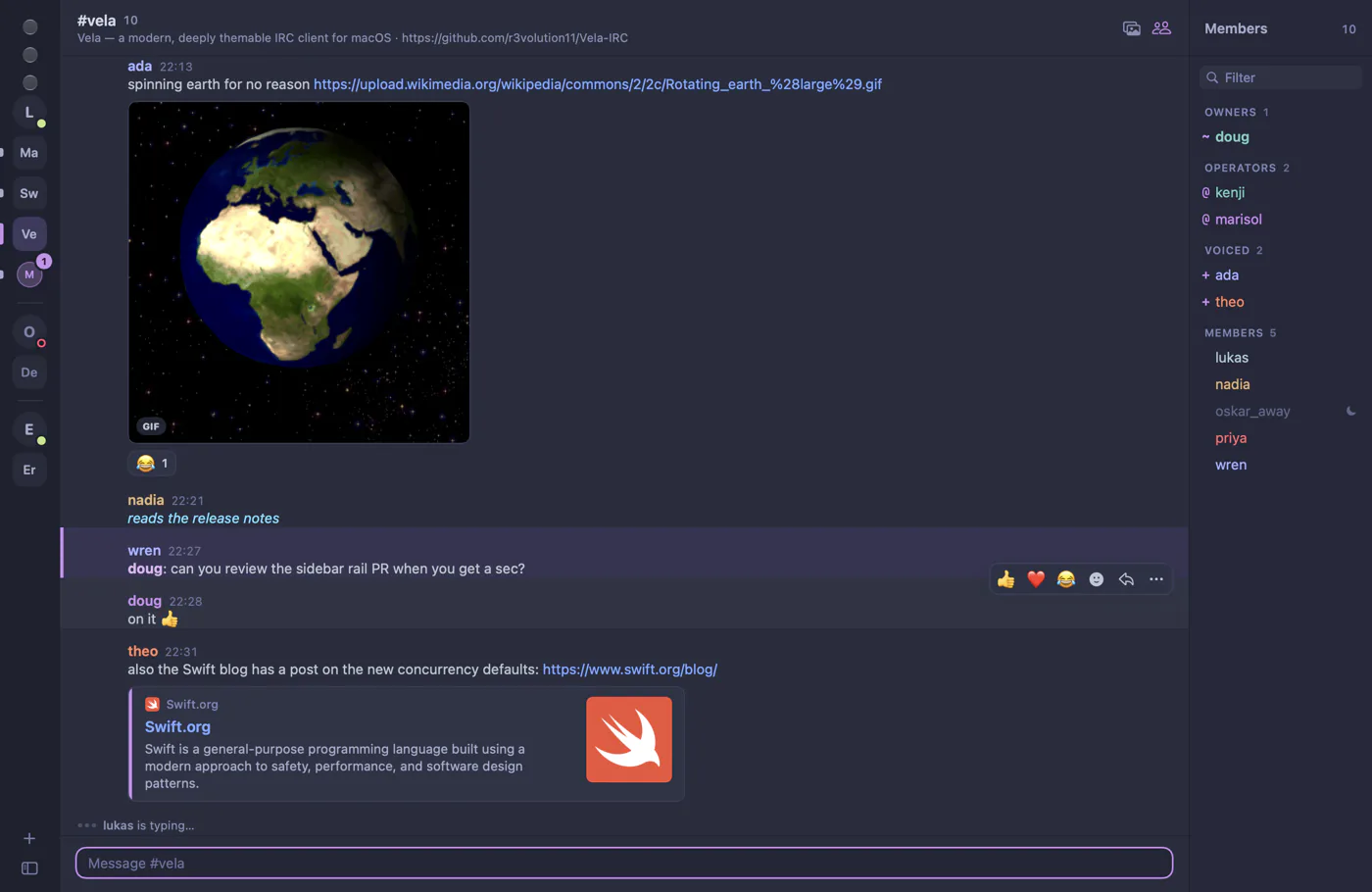
Collapse the sidebar with ⌃⌘S, View → Collapse Sidebar or the sidebar button at its top-right corner, and it becomes a thin rail:
- Each network is a circle with its initial and a status dot.
- Each channel is a tile with its initials (
#swift-langbecomes SL), and conversations show the person's initial. - A short pip on the left edge marks unread activity, a tall bar marks the selected channel, and a badge counts mentions.
Hover the rail for a moment and the full sidebar floats over the conversation without changing the layout. Move away and it tucks back in. Click the sidebar button at the bottom of the rail to expand it for good.
The red, yellow and green window buttons stack vertically when the rail is showing and sit side by side otherwise. Double-clicking an empty part of the title strip zooms or minimizes the window, following your setting in System Settings → Desktop & Dock.
The conversation
The header shows the channel name, how many people are in it and the topic. On the right:
- Media (picture icon) turns inline images and previews on or off for this channel. See Inline media & privacy.
- Members (people icon) shows or hides the member list (⇧⌘M).
When you're offline or connecting, the header says so, and the message field offers a Reconnect button. If you've left a channel, it offers Join instead.
Messages are separated by day dividers. A New marker shows where you stopped reading, and when you've scrolled up, a Jump to present button takes you back to the newest messages. See Messages & layouts.
The member list
The list of people in the channel, grouped by rank. See Member list. Drag its edge to resize it.
Moving around
| To | Press |
|---|---|
| Go to any channel or conversation | ⌘P or ⌘K |
| Previous / next conversation | ⌥⌘↑ / ⌥⌘↓ |
| Previous / next with unread messages | ⌥⇧⌘↑ / ⌥⇧⌘↓ |
| Tabs 1–9 (tab stacks) | ⌘1 … ⌘9 |
| Focus the message field | ⌘L |
All of them are listed in Keyboard shortcuts.
The Dock icon
Vela's Dock icon shows a badge with the number of mentions and private messages you haven't read yet.