
Inline media & privacy
When someone posts a link, Vela can show what's behind it right in the conversation: images and GIFs, a card with the page's title and description, or a video player. Up to four links per message get a preview.
What you'll see
- Images (JPEG, PNG, WebP and others) appear inline, scaled to fit. Animated GIF, APNG and WebP play inline; with Reduce Motion turned on in macOS, they show the first frame and a play button. Click an image to open it full size (Esc closes it). Right-click to open it in your browser or copy it.
- Link cards show a page's site name and icon, title, description and image, with an accent bar in the page's own color.
- YouTube, Vimeo, Twitch and Streamable links show a card with the video's title and thumbnail. Click ▶ to play it right there, and × to close the player.
- Video files (
.mp4,.mov, Imgur.gifv) show a still frame. They never play until you click.
Hover a message's previews and click the chevron to hide them, or right-click a preview and choose Hide Previews.
Full or compact
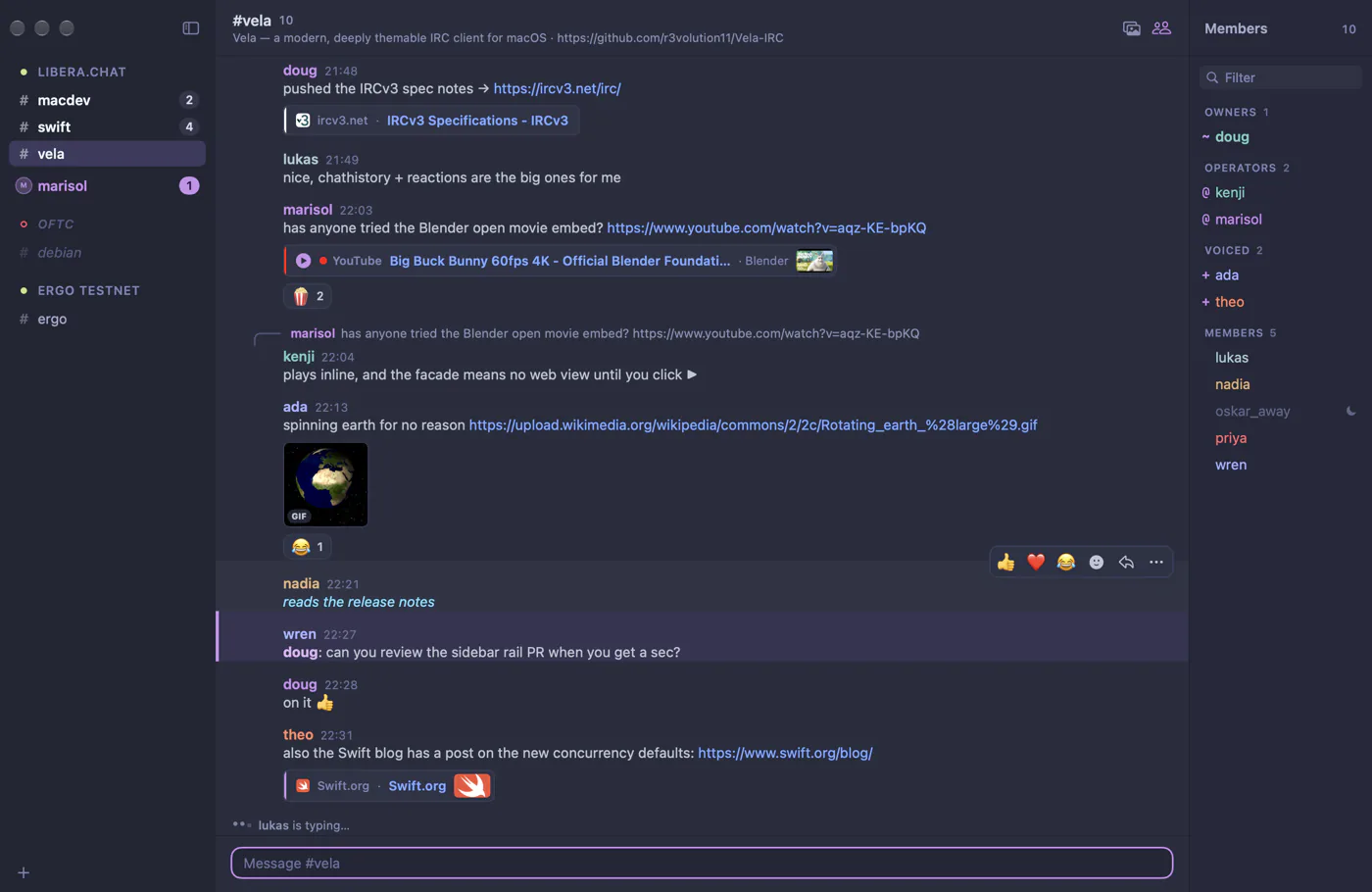
Full previews (the default) look like Discord or Slack: cards, large images and players. Compact previews show a single line per link with a small thumbnail, and video players open underneath only when you press ▶. Switch in Settings → Media → Presentation, or run Media: Use Compact Previews from the command palette.
What Vela fetches, and what that means for privacy
To build a preview, Vela downloads the linked page or image from your Mac. That's how every chat app with link previews works, and it means:
- The site learns your IP address, and that someone opened the link at about that time.
- Vela sends no cookies and identifies itself honestly as Vela's link previewer. It never runs the page's scripts; it reads only the page's title, description and image.
- Before you press play, a video card fetches only the title and thumbnail. The provider's player (and its scripts and cookies) loads only when you click ▶. YouTube plays from
youtube-nocookie.com, and nothing the player stores is kept after it closes. - Your local network is off-limits. Vela never fetches previews from
localhost, private and link-local IP addresses, or names likerouter.local, so a link in a channel can't make Vela probe devices on your network. - Previews are cached on your Mac for a week, so scrolling back doesn't fetch them again.
If that's more than you want, Vela gives you plenty of control.
Controlling media
All of these are in Settings → Media.
Everywhere
- Load previews automatically. Turn this off and Vela fetches nothing until you click a link's Load preview button.
- Link cards and Video players turn those kinds of preview on or off separately.
Per channel
Click the picture icon in a channel's header, or right-click the channel and choose Disable Inline Media. That channel shows plain links from then on. Settings → Media counts the channels you've turned off and can turn them all back on.
To turn media off for a whole network, right-click the network in the sidebar (or its tab) and choose Disable Inline Media on This Network. Behind the scenes this adds "<network id>/*" to media.disabledBuffers in settings.json.
By domain
- Blocked domains never load, including their subdomains: blocking
example.comalso blocksimg.example.com, but notbadexample.com. - Allowed domains, together with Only load media from allowed domains, is a strict allow list: everything else shows a plain link. Blocking wins if a domain is on both lists.
You can write entries as example.com, *.example.com or even a pasted URL; Vela keeps just the domain.
Size limits
- Largest image to load automatically (10 MB by default). Bigger images show a placeholder you can click.
- Maximum image height (320 points by default). Taller images are scaled down.
The matching settings.json keys are listed under Media in the settings reference.